
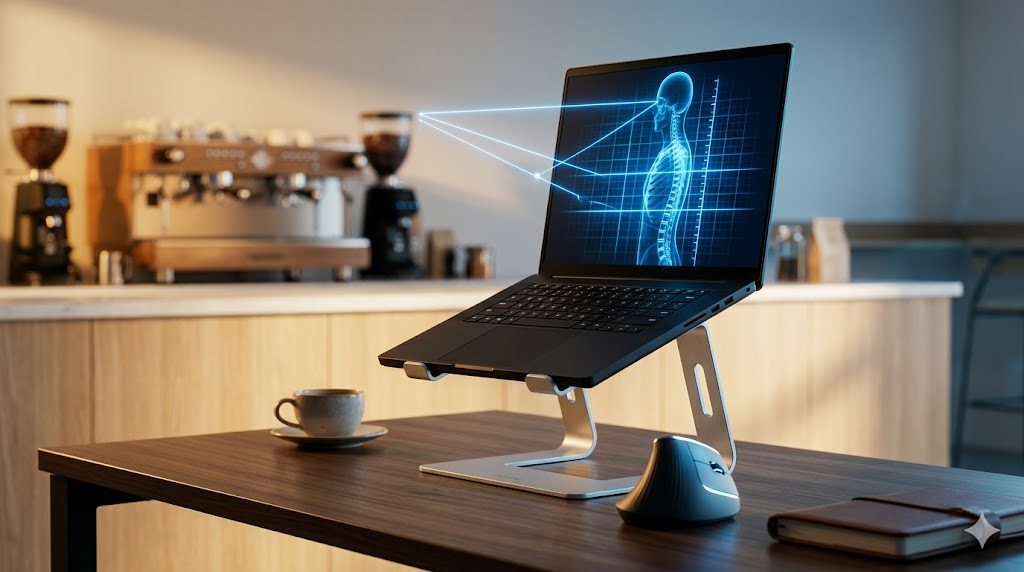
Two weeks into a six-week stint in Tbilisi, I woke up and couldn’t turn my head to the right. Not dramatically — I could still function — but there was a specific locked sensation in my upper cervical spine that took three days of deliberate not-working to resolve. The culprit was obvious in retrospect: a dining table at the wrong height, a chair with no lumbar support, and eight-hour days looking down at a laptop screen at approximately the angle you’d use to examine something on the floor.
This is the specific injury pattern that accumulates silently across every nomad who hasn’t solved their portable ergonomics. It doesn’t arrive all at once. It builds across weeks of Airbnb dining tables, café chairs designed for 45-minute coffees, and coworking desks that were specced for average European heights that don’t match yours. By the time you notice it, you’ve been damaging your posture for months.
The good news: the fix is specific, lightweight, and doesn’t require you to carry a Herman Miller in your carry-on. This guide covers the complete ergonomic travel desk system — stand, keyboard, mouse, and hub — with the verified products I’d actually carry today and the honest reasons each one earns its place.
The Ergonomic Problem — And Why Half-Solutions Don’t Work
Here’s the thing most ergonomic guides get wrong: they treat laptop stands as the complete solution. They’re not.
A laptop elevated to eye level is ergonomically correct for your neck and upper back. But the moment you elevate the screen, your built-in keyboard is now at the wrong height for your wrists — suspended in the air at an angle that causes shoulder elevation and ulnar deviation over the course of a long session. Fixing your neck while breaking your wrists isn’t a solution. It’s trading one injury for another.
The correct ergonomic travel setup has four components working together:
- Screen elevation — laptop at eye level, not chin level
- External keyboard — at desk height, not laptop height
- Ergonomic mouse — neutral wrist position, not pronated flat
- Hub — one cable connecting everything cleanly
This guide covers all four. Each has a verified product. The whole system weighs under 900g and fits in a tech pouch.
The Complete Ergonomic Travel Desk at a Glance
| Product | Category | Solves | Weight | Tier | My Take |
|---|---|---|---|---|---|
| MOFT Laptop Stand | Screen elevation | Neck and upper back pain | ~200g | Premium Stand | Always on the laptop |
| NuPhy Air75 | Keyboard | Wrist angle from elevated screen | ~598g | Mid-Range Keyboard | The travel keyboard I’d actually use |
| Redragon K689 PRO | Keyboard | Same problem, lower budget | ~780g | Budget Keyboard | For fixed-base setups |
| Logitech MX Vertical | Mouse | Forearm pronation and wrist RSI | ~135g | Specialist Mouse | For wrist pain specifically |
| Logitech MX Anywhere 3S | Mouse | Precision and portability | ~99g | Mid-Range Mouse | For everyone else |
| UGREEN Revodok 7-in-1 | Hub | Cable management and connectivity | ~75g | Essential Hub | One cable to the laptop |
Component 1: Screen Elevation — The MOFT Laptop Stand
The MOFT Laptop Stand solves the screen height problem in the most elegant way I’ve found: by attaching directly to the bottom of your laptop so it’s always with you, always deployed in seconds, and adds effectively nothing to your pack weight or volume.
The design is a reusable adhesive pad of vegan leather and fibreglass that sticks to your laptop’s underside and folds out into either a 15-degree or 25-degree elevated position. When flat, it adds 3mm to the laptop’s profile — thin enough that it still slides into standard laptop sleeves without modification.
Why 15 and 25 Degrees Matter for Different Surfaces
The ergonomic benefit isn’t about eliminating the downward screen angle entirely — at a standard café table height, even a moderate elevation improves your neck angle meaningfully. At 25 degrees, the MOFT raises the screen enough to reduce cervical spine loading from the 49kg effective force of a 0-degree flat angle to approximately 12kg — a reduction of nearly 75% in the muscular effort your neck is exerting all day. The 15-degree position is for laptop tray tables on planes and narrow surfaces where the taller angle would make the screen unstable.
It also elevates the keyboard angle, which improves typing comfort directly on the laptop keyboard in situations where you don’t have an external keyboard available — a café table session between meetings, an airport lounge, a quick reply on a train. The MOFT covers both the “I have my full setup” scenario and the “I just need to get this done” scenario without requiring you to make a decision at the moment.
The adhesive is genuinely reusable — it’s removed and repositioned dozens of times without degrading, and when you eventually upgrade to a new laptop, it comes off cleanly with a little patience and no residue if removed slowly at a low angle.
Rated 4.6★ on Amazon.ca — the reviews consistently mention two things: the setup speed and the fact that it never gets left behind in a hotel room because it’s always on the laptop.
Real scenario — Dining table, Airbnb, Lisbon, week three: The table is the wrong height. The chair has no lumbar support. Both are non-negotiable facts of this particular apartment. The MOFT flips out to 25 degrees, which changes the screen angle enough that my head is more level for the duration of the session. Combined with the external keyboard sitting flat on the table, the setup is ergonomically functional without requiring me to negotiate furniture with the landlord.
Pros:
- Adds effectively zero pack volume — stays on the laptop permanently
- 15 and 25-degree positions cover most working surface scenarios
- Reusable adhesive works across multiple laptop generations
- Works for both eye-level external keyboard setups and direct typing
- Setup time under two seconds
Cons:
- Doesn’t achieve full eye-level elevation — reduces neck angle but doesn’t eliminate it
- Adhesive can fail in high-heat environments (car dashboards, direct sunlight surfaces)
- Slight rocking on uneven surfaces at the 25-degree position
| Score | Rating |
|---|---|
| Airport Usability | 5/5 |
| Portability | 5/5 |
| Setup Convenience | 5/5 |
| Value for Travel | 5/5 |
💻 Premium Stand Pick MOFT Laptop Stand This is the stand I’d tell every nomad to buy first because it’s the only one you’ll actually use every session — it’s already there when you open your laptop. The elevation isn’t full eye-level, but the cervical spine loading reduction it provides at 25 degrees is real and meaningful across an 8-hour day. If you want full eye-level, you need a taller stand that isn’t currently in our verified database — the MOFT is the honest best verified option for travel-first ergonomic improvement. 👉 View Best Price on Amazon.ca
Component 2: The External Keyboard — Because Your Laptop Keyboard Is Now in the Air
The moment you elevate your laptop on any stand, the built-in keyboard goes with it. For short sessions that’s manageable. For a full working day, typing on a keyboard at chest height with your arms reaching up creates shoulder elevation and elbow loading that replaces the neck problem you just fixed.
The solution is an external keyboard that sits flat on the desk at the correct height for your arms. Two options from the verified database cover the full price spectrum.
NuPhy Air75 — The Travel-First Mechanical Keyboard
The NuPhy Air75 is the keyboard I’d choose for any nomad who moves locations frequently. Its low-profile mechanical switches reduce the total keyboard height to approximately MacBook keyboard level — which matters because it means your hands transition between the MacBook and the external keyboard without an adaptation gap, and it means the keyboard travels flat alongside a laptop without adding structural bulk to the bag.
Triple connectivity — Bluetooth 5.0, 2.4GHz wireless, and USB-C wired — covers every scenario without re-pairing. A key combination switches between up to three paired devices, so your keyboard can serve your MacBook at the desk and your phone at the café without any settings menu. Hot-swappable switches mean individual switch replacement if one fails — a repairability feature that matters on a keyboard that might travel 50,000km over its life.
The 75% compact layout retains the arrow keys and function row that the 65% layout drops — a meaningful distinction for developers and anyone who uses F-keys regularly. The 3,000mAh battery runs for weeks of daily use on Bluetooth before needing a charge.
Rated 4.6★ on Amazon.ca — praised specifically by one-bag travelers and MacBook users for the low profile and the minimal adaptation gap between keyboards.
Real scenario — Train journey, Paris to Lyon, 2 hours: MacBook elevated on MOFT, NuPhy Air75 on the tray table. The tray table is narrow enough that a full-size keyboard would hang off the edge. The 75% layout fits with room for a coffee cup. Low-profile switches mean the whole keyboard sits close enough to the tray surface that it doesn’t wobble on the fold-down pivot. Two hours of editing, no neck strain, no wrist issues.
Pros:
- Low-profile switches — minimal adaptation gap from MacBook keyboard
- Triple connectivity covers all device switching scenarios
- Hot-swappable for long-term repairability
- 75% layout retains arrow keys and function row
- Slim enough to travel alongside a laptop without structural conflict
Cons:
- ~598g — the heaviest single item in this ergonomic kit
- Low-profile switches feel different from traditional mechanical — adjustment period for enthusiasts
- Premium price point over budget alternatives
| Score | Rating |
|---|---|
| Airport Usability | 4.5/5 |
| Portability | 4.5/5 |
| Setup Convenience | 5/5 |
| Value for Travel | 4/5 |
⌨️ Mid-Range Keyboard Pick NuPhy Air75 Mechanical Keyboard For nomads who move frequently and need their external keyboard to travel cleanly alongside a MacBook — this is the one. The low profile, triple connectivity, and hot-swap repairability make it the most travel-considered mechanical keyboard available. If you’re staying in one place for a month or more, read on for the budget alternative. 👉 View Best Price on Amazon.ca
Redragon K689 PRO — The Fixed-Base Budget Alternative
The Redragon K689 PRO delivers full-height mechanical switch feel at significantly lower cost than the NuPhy. For nomads who stay in one location for weeks at a time — a six-week sprint in Medellín, a two-month base in Chiang Mai — and whose keyboard lives on a desk rather than in a bag daily, the K689 PRO makes more sense than the NuPhy’s travel-optimised premium.
Full-height switches mean the keyboard sits taller off the desk surface — more satisfying typing feel for mechanical enthusiasts, more wrist angle for extended sessions compared to the NuPhy’s lower profile. The 4,000mAh battery outlasts the NuPhy on paper, and hot-swap support matches the NuPhy’s repairability advantage at a lower price. Triple connectivity is identical — Bluetooth 5.0, 2.4GHz, and USB-C wired.
The honest trade-off: at ~780g and full switch height, the K689 PRO packs less elegantly than the NuPhy alongside a laptop. It belongs in the main compartment of a bag, not the laptop sleeve pocket. For daily pack-and-unpack, that matters. For a fixed-base setup where the keyboard lives on a desk — it’s a non-issue.
Rated 4.4★ on Amazon.ca — strong reviews from mechanical keyboard enthusiasts entering the wireless compact category.
Pros:
- Full-height mechanical switches — traditional mechanical typing feel
- 4,000mAh battery — longer runtime than NuPhy
- Hot-swappable at a lower price point
- Same triple connectivity as NuPhy
- Significantly lower cost than premium alternatives
Cons:
- Full switch height packs less elegantly for frequent movers
- ~780g — heavier than the NuPhy
- Less polished build quality than the NuPhy at this price
| Score | Rating |
|---|---|
| Airport Usability | 3/5 |
| Portability | 3.5/5 |
| Setup Convenience | 4.5/5 |
| Value for Travel | 5/5 |
⌨️ Budget Keyboard Pick Redragon K689 PRO For fixed-base nomads staying in one location for a month or longer, the K689 PRO delivers genuine mechanical switch feel at a price that doesn’t require justification. Don’t take it as a daily carry item — set it up on the desk when you arrive and leave it there for the duration. 👉 View Best Price on Amazon.ca
Component 3: The Mouse — The Wrist Problem Nobody Talks About
Neck pain from a flat laptop screen is visible and immediate — you feel it within days. Wrist damage from a pronated flat mouse accumulates silently over months until it becomes RSI or early-stage carpal tunnel. By the time you notice it, you’ve been doing the damage for a long time.
Two mice cover two different scenarios here.
Logitech MX Vertical — For Anyone Already Experiencing Wrist Symptoms
Standard mice require sustained forearm pronation — the inward forearm rotation that keeps the back of your hand facing upward. Held for eight hours, that position loads the tendons and muscles of the forearm in a way that creates the aching, burning sensation that nomads working long daily hours tend to normalise as inevitable. It isn’t inevitable.
The MX Vertical’s 57-degree grip angle positions your hand in a natural handshake orientation that eliminates the forearm pronation entirely. Within two weeks of consistent use, most users with existing wrist strain report meaningful reduction in end-of-day discomfort. The adaptation period is real — three to five days of slightly reduced cursor precision while your hand learns the new orientation — but it’s short and the long-term benefit is worth it.
At 135g and Bluetooth connectivity for up to three devices, it’s portable enough to include in a travel setup. Honest caveat: the vertical form factor is larger than a standard mouse and packs less elegantly. For a fixed-base setup, this doesn’t matter. For daily pack-and-unpack travel, it’s a consideration.
Rated 4.5★ on Amazon.ca — reviews are predominantly from people managing existing RSI or wrist strain who report significant symptom reduction.
Pros:
- 57-degree grip eliminates forearm pronation — addresses the mechanical cause of wrist strain
- Four-month battery life — charge it once per season
- Easy-switch for up to three paired devices
- Bluetooth + USB receiver dual connectivity
Cons:
- Larger form factor packs less elegantly than standard mice
- 3–5 day adaptation period affects initial productivity
- No MagSpeed scrolling — standard scroll wheel only
| Score | Rating |
|---|---|
| Airport Usability | 3.5/5 |
| Portability | 3.5/5 |
| Setup Convenience | 4.5/5 |
| Value for Travel | 4.5/5 |
🖱️ Specialist Mouse Pick Logitech MX Vertical Wireless Mouse If you’re already feeling wrist or forearm discomfort after long work sessions, this is the device that addresses the mechanical cause rather than the symptom. The adaptation period is real and the form factor is larger than a standard mouse — both are worth accepting for the wrist health benefit if you’re logging 8+ hours of daily mouse use. 👉 View Best Price on Amazon.ca
Logitech MX Anywhere 3S — For Everyone Who Isn’t Having Wrist Trouble Yet
The MX Anywhere 3S is the travel mouse I’d recommend to anyone whose wrists feel fine. At 99g it’s light enough to forget it’s in the bag, its 8,000 DPI sensor tracks on any surface including glass and polished marble, and MagSpeed electromagnetic scrolling — where the wheel decelerates smoothly over seconds rather than clicking to a stop — changes how you navigate long documents and codebases in a way that’s hard to describe until you’ve used it.
70 days of battery from a single charge means you charge it roughly once every two months in normal use. I’ve had mine for over a year. I’ve charged it four times. That’s the kind of maintenance overhead that becomes invisible in a travel context where you’re already managing more logistics than you’d like.
Rated 4.7★ on Amazon.ca — praised by developers, writers, and designers for the scrolling performance and any-surface tracking.
Pros:
- 8,000 DPI tracks on any surface — glass, marble, rough wood
- MagSpeed scrolling transforms long document navigation
- 70-day battery — charge it monthly, not weekly
- Quiet click switches — library and quiet coworking appropriate
- 99g compact form factor
Cons:
- Standard horizontal grip — doesn’t address forearm pronation
- Compact size can cause fatigue for large hands in extended sessions
- Premium price for a compact mouse
| Score | Rating |
|---|---|
| Airport Usability | 5/5 |
| Portability | 5/5 |
| Setup Convenience | 5/5 |
| Value for Travel | 4.5/5 |
🖱️ Mid-Range Mouse Pick Logitech MX Anywhere 3S For nomads without active wrist symptoms, this is the precision travel mouse I’d choose without hesitation. MagSpeed scrolling, any-surface tracking, and 70-day battery in a 99g compact body. If your wrists start complaining, upgrade to the MX Vertical — but until then, this is the right tool. 👉 View Best Price on Amazon.ca
Component 4: The Hub — One Cable That Connects Everything
An elevated laptop plus an external keyboard plus a mouse plus a power source is four separate USB-C or Bluetooth connections competing for two ports on a MacBook Air. The UGREEN Revodok 7-in-1 USB-C Hub resolves this with one cable from the laptop that branches into HDMI, three USB-A ports, USB-C data, SD card, microSD card, and 100W power delivery passthrough.
The practical setup is: one USB-C cable from the MacBook to the hub, hub on the desk, everything else plugged into the hub. The keyboard’s USB-C receiver into USB-A port one. The mouse receiver into USB-A port two. Power into the PD passthrough. If you’re connecting a portable monitor, it goes into HDMI. The MacBook sees one cable. You see a clean desk.
At 75g the hub adds almost nothing to the pack weight. Setup takes 30 seconds when you arrive somewhere new. Teardown is one cable pull.
Rated 4.6★ on Amazon.ca — praised by MacBook users for eliminating the adapter stack that accumulates without a hub.
👉 UGREEN Revodok 7-in-1 on Amazon.ca
My Honest Verdict: Build the System in This Order
Here’s the sequencing I’d recommend if you’re building this setup from scratch and budget is a consideration.
Start with the MOFT — it costs the least, weighs nothing, and delivers immediate ergonomic improvement for every session immediately. If you only do one thing from this guide, do this.
Add the mouse second — either the MX Anywhere 3S if your wrists are fine, or the MX Vertical if they’re already complaining. A good mouse is the second-highest ergonomic return after screen elevation.
Add the keyboard third — the NuPhy Air75 if you move frequently, the Redragon K689 PRO if you stay in one place for extended periods. Don’t buy the keyboard before you have the stand — an external keyboard with a flat laptop screen is one ergonomic problem fixed at the expense of another.
Add the hub last — once you have keyboard and mouse, the hub makes the cable situation clean. Before that, it’s unnecessary.
What a Complete Session Actually Looks Like
Scenario 1 — Coworking space, Barcelona, full day: MacBook arrives with MOFT on the bottom. Fold out to 25 degrees, place on desk. UGREEN hub into left USB-C port — one cable. NuPhy Air75 USB receiver into hub USB-A port. MX Anywhere 3S dongle into second USB-A port. Charger into hub PD passthrough. Setup complete in under 90 seconds. Screen at better angle, keyboard flat at desk height, mouse in natural hand position. End of day: no neck pain, no wrist fatigue.
Scenario 2 — Airbnb, Medellín, six-week sprint: K689 PRO lives on the desk for the duration. MOFT on the laptop elevates the screen. MX Vertical on the desk for the extended daily sessions — six hours of spreadsheet work means wrist position matters. Hub connects everything. The dining table becomes a functional workspace for six weeks without any negotiation with the furniture.
Scenario 3 — Flight, cramped tray table: MOFT to 15 degrees, typing directly on laptop keyboard — no room for external peripherals on a budget airline tray. The stand does its one-product job and covers the partial-ergonomic-improvement scenario that the full setup can’t reach.
For anyone starting this build, the MOFT Laptop Stand is available now on Amazon.ca — MOFT Laptop Stand →
The Complete Ergonomic Travel Desk — Everything in One Place
| Product | Category | Solves | Weight | |
|---|---|---|---|---|
| MOFT Laptop Stand | Screen elevation | Neck and upper back loading | ~200g | View on Amazon.ca |
| NuPhy Air75 | Keyboard (frequent movers) | Wrist angle from elevated screen | ~598g | View on Amazon.ca |
| Redragon K689 PRO | Keyboard (fixed base) | Same problem, lower budget | ~780g | View on Amazon.ca |
| Logitech MX Vertical | Mouse (wrist symptoms) | Forearm pronation and RSI | ~135g | View on Amazon.ca |
| Logitech MX Anywhere 3S | Mouse (no symptoms) | Precision and portability | ~99g | View on Amazon.ca |
| UGREEN Revodok 7-in-1 | Hub | Cable management | ~75g | View on Amazon.ca |
The best ergonomic travel desk setup isn’t one product — it’s four components solving four specific physical problems that accumulate silently across months of nomadic work. Buy them in the right order and you’ll fix each problem as you encounter it rather than waiting until the pain forces the purchase. All of the above ships to Canada with Prime.
My neck locked up in Tbilisi because I didn’t have this system. I’ve worked from fourteen countries since with no recurrence. The correlation is not subtle.
If you’re adding a portable monitor to complete the dual-screen setup this stand enables, the best portable monitor for digital nomads covers every display option that pairs with the UGREEN hub. For the full peripheral stack comparison including more keyboard and mouse options, the best mechanical keyboard guide and best wireless mouse guide cover both categories in full technical depth. And for how this ergonomic setup fits within the complete nomad hardware system, the best tech travel kit guide maps every category from power to storage.
Pingback: The Travel Gadgets I Actually Use on Every Trip — Nothing Paid, All Tested
There is apparently a lot to realize about this. I think you made some nice points in features also.